How to Use Clipspace App
Follow these steps to get started and sync your devices seamlessly.
1. Create a Space
e.g., Home, Work, or any group you need
One default space Home will be created after logging in.
2. Add Your Devices
- Find the ID of device to add in the ID icon(
 ).
). - Send the invite to your device (
 ) .
) . - Refresh to receive the invitation (
 ) .
) . - Accept it, then refresh again to see the device in your space.
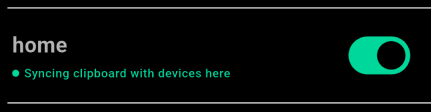
3. Activate Sync
Toggle Active ON for all devices in the space.
4. Copy & Paste Across Devices
On Android:
- Select a text to see the context menu → tap ⫶ → Copy to Space.

Always refresh to see updates or changes in the app.
Now, whatever you copy on one device will instantly be available on all your connected devices.
Note:
- the context option “Copy to Space” might not be available in all apps. (We are working on it ;-)
- the first copy might not go through — just try again.